Syncs and status#
CrushSync's window (menu › Settings…) shows every sync of this computer and what it is doing.
The state at the top#
The badge next to the version tells you the overall state: Running, Not running, No syncs, or that the server cannot be reached. A line under it gives the reason when something is wrong, for example "Sync URL missing" before you entered the server, or that the login was refused.
The same state is the first line of the tray menu, Status: ….
One card per sync#
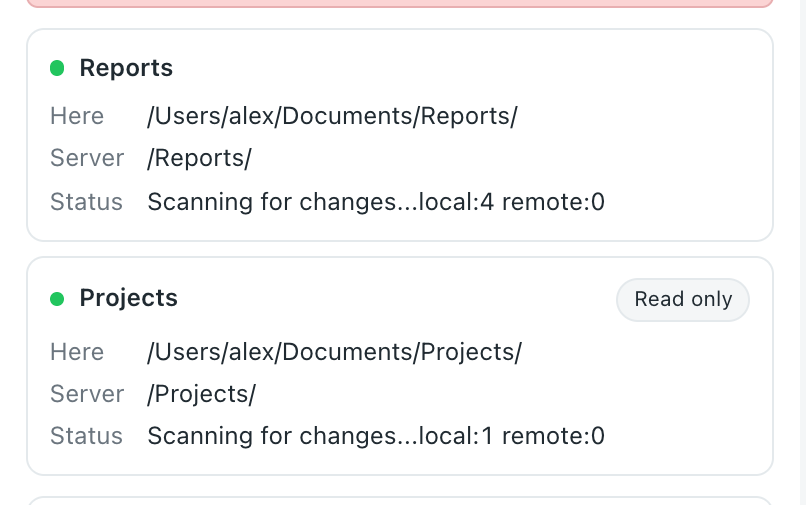
| On the card | What it is |
|---|---|
| The name | the folder's name |
| Read only | this computer only receives; changes made here are not sent |
| Here | the folder on this computer |
| Server | the folder on the server |
| The schedule | the times it runs, when it is not real time |
| Status | what it is doing now: scanning for changes (with the number of local and remote items compared), waiting, or Not running |
| Download and Upload | a progress bar for the file being transferred, with what is still to upload |
The buttons#

| Button | What it does |
|---|---|
| Sync now | compares every sync with the server now, without waiting for a change or the next scheduled time |
| Start | starts all syncs |
| Stop | stops all syncs. Nothing is transferred until you start them again. |
| Sync Manager | opens the server's Sync Manager page in your browser |
The tray menu has the same actions (The tray menu).
Messages#
Messages in the window lists what happened recently, newest first: syncs started and stopped, files transferred, problems. The same messages appear as desktop notifications as they happen.
Server and login#
The Server and login section holds the server URL, your login and the control password. Change them there and press Save and start (First connection).
The log#
For more detail than the messages, CrushSync writes a log file. Locate log file in the tray menu opens its folder (Updates and files).