Bookmarks#
A bookmark keeps a login and an upload folder under one entry: another server, another account, or just another folder on the same server. Switch between them without typing anything again.
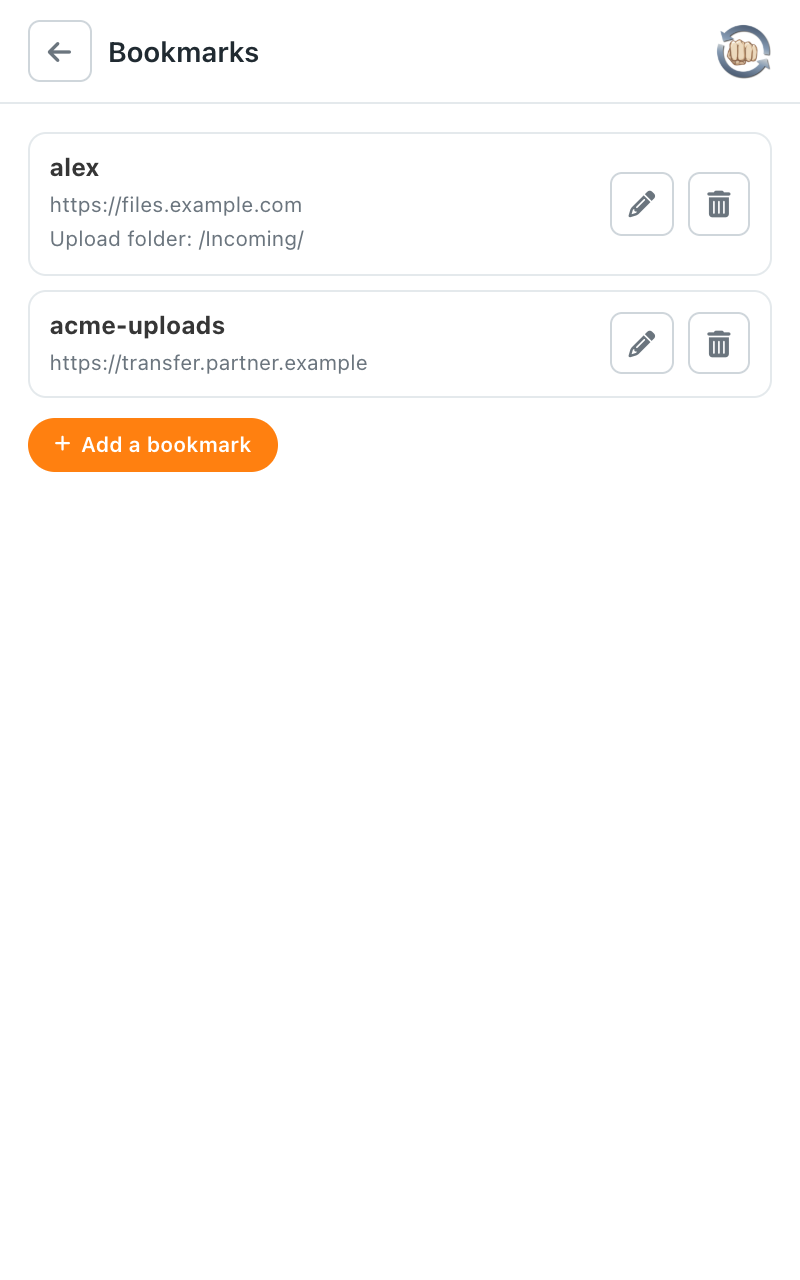
Open the list with Bookmarks on the login, or from the tray menu, which lists every bookmark under Bookmarks.
Adding a bookmark#
Add a bookmark (or tray menu › Bookmarks › Add a new bookmark):
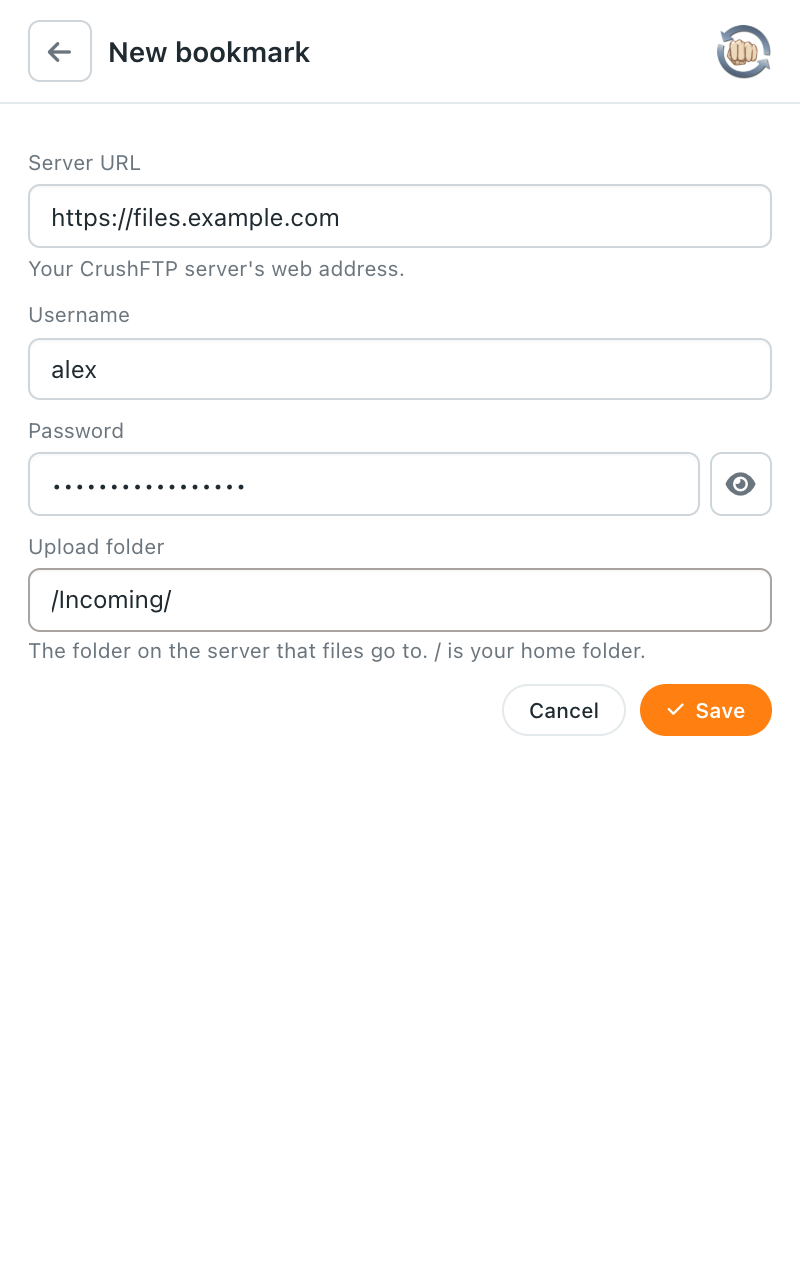
| Field | What to enter |
|---|---|
| Server URL | the CrushMFT server's web address |
| Username, Password | the login for that server |
| Upload folder | where files sent with this bookmark go. / is the home folder. |
Save keeps it. The whole bookmark, password included, is stored encrypted on your computer.
Using a bookmark#
Click a bookmark in the list, or choose it in the tray menu. CrushDrop signs in with it and shows that server's upload page.
Changing and removing#
Open a bookmark from the list to change it. Removing one asks first.
Bookmarks made with an earlier CrushDrop are kept when you install a newer one.