Logging in#
Click CrushDrop's icon in the menu bar or the notification area to open its window. The first time, it asks for your server and login.
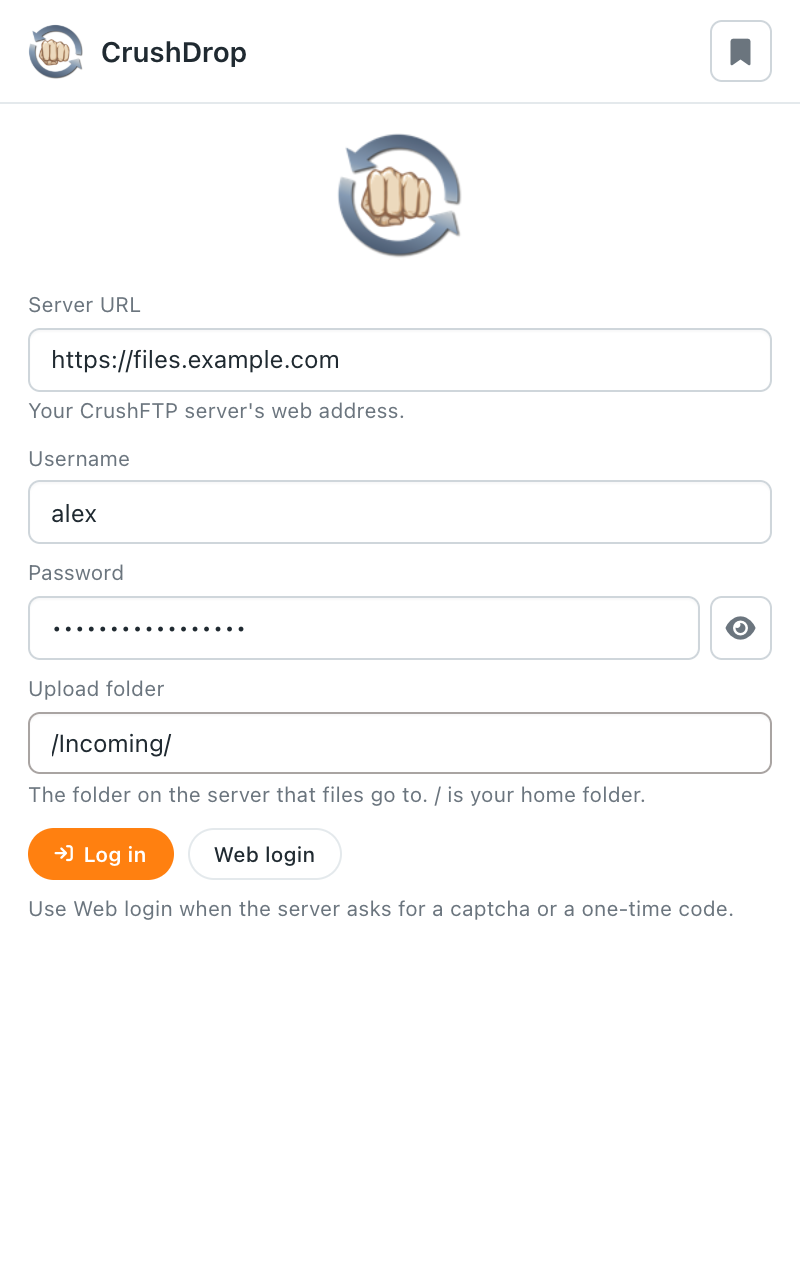
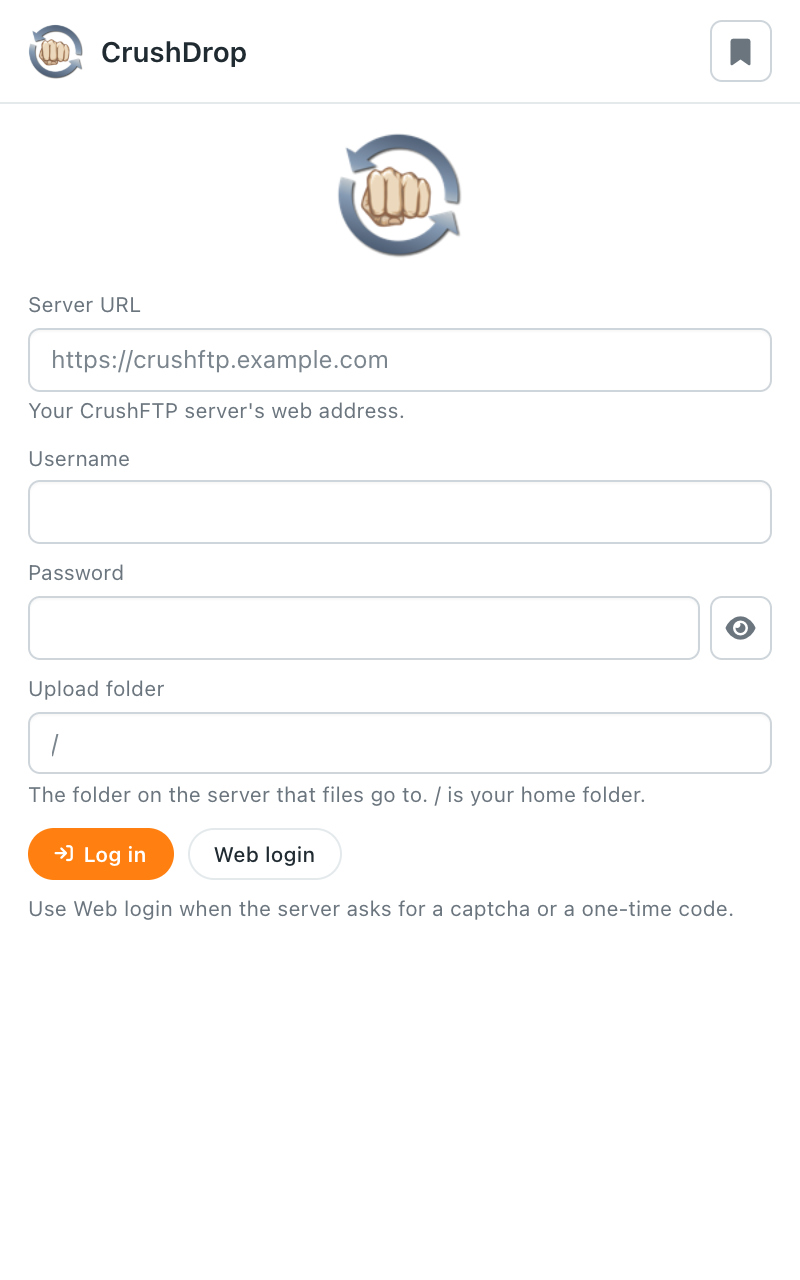
| Field | What to enter |
|---|---|
| Server URL | your CrushMFT server's web address, for example https://files.example.com |
| Username, Password | your CrushMFT login. The eye button shows the password while you type. |
| Upload folder | the folder on the server that your files go to. / is your home folder. |
Press Log in. CrushDrop connects to the server:
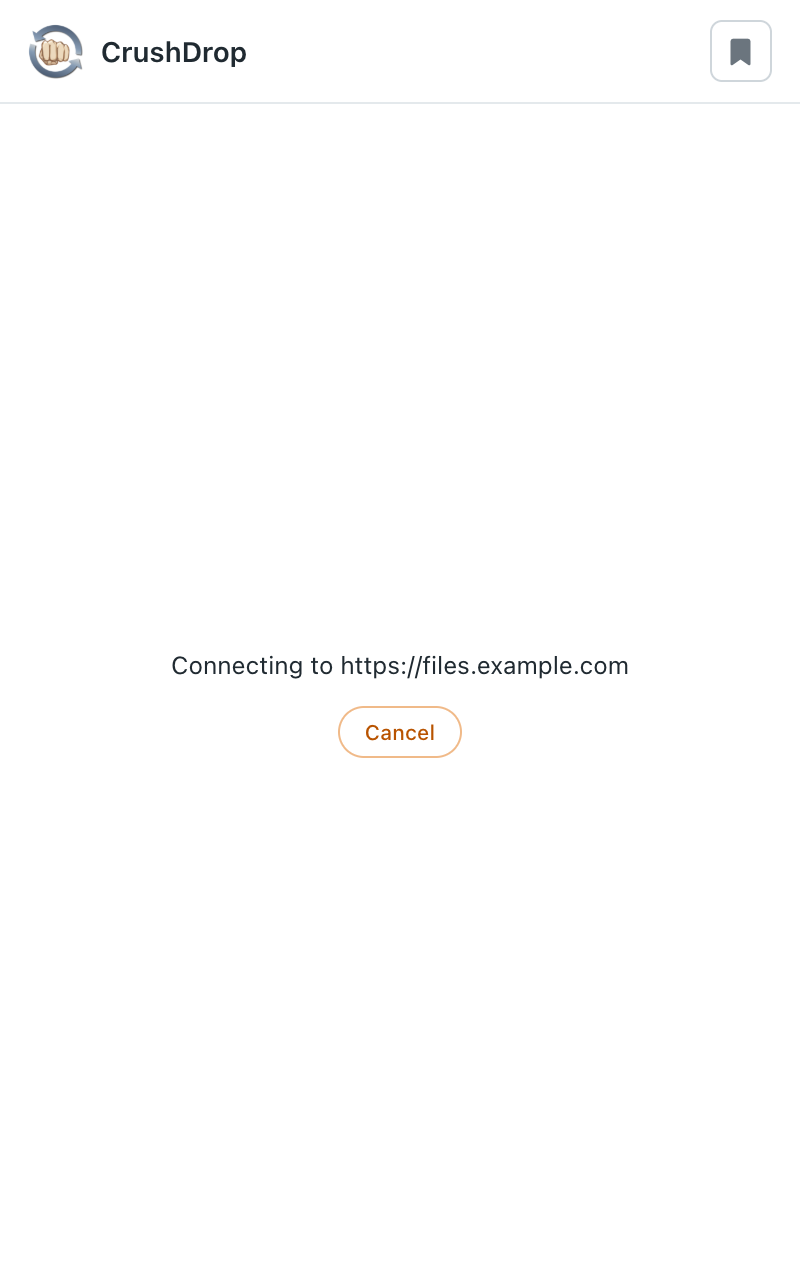
and then shows the server's upload page, ready for files: Sending files.
CrushDrop remembers the login, encrypted on your computer. From then on it signs in by itself whenever it starts.
Web login: one-time codes and captchas#
If your server asks for a one-time code, a captcha, or sends you to a company sign-in page, use Web login instead of Log in. CrushDrop then opens the server's own login page in its window, and you sign in there the way you do in a browser.
The server must have a valid certificate#
CrushDrop connects over HTTPS, and the server needs a valid certificate for its name. With a certificate that is expired, self-signed or made for another name, CrushDrop may refuse to connect. Use the server name the certificate was made for; if the server only has a self-signed certificate, ask the administrator for a proper one.
More than one server or folder#
Bookmarks, at the top of the login, keeps several logins or upload folders to switch between: Bookmarks.
Signing out#
Right-click the icon › Logout, or Back to Login to return to the form with your entries. The icon is in colour while you are signed in, and grey when you are not.
Light and dark#
Right-click the icon › Theme switches between light and dark.