# SSH Tunnel
This feature allows to create and use port forwarding mode SSH tunnel sessions just like with [OpenSSH](https://www.ssh.com/academy/ssh/tunneling/example).
### Configuration steps:
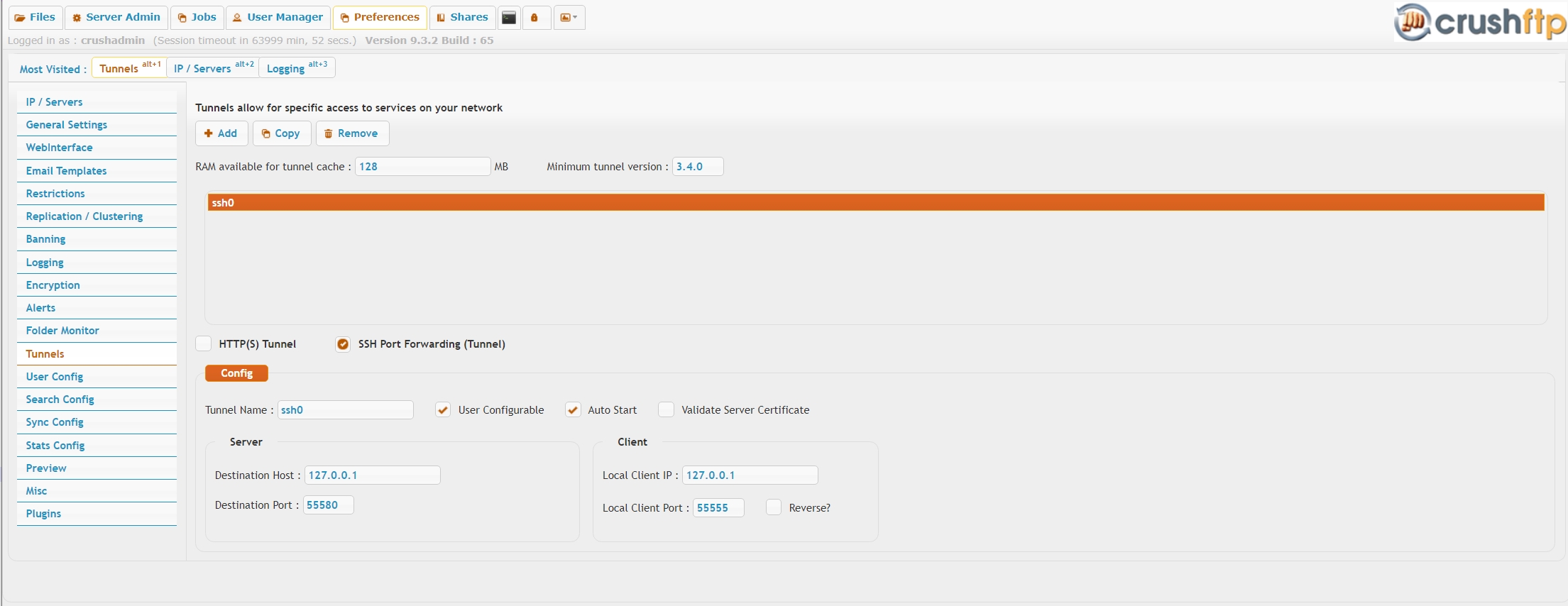
**1.) add an SSH tunnel instance on Preferences ->[Tunnels](Tunnels.md) page, user configurable.** Port number doesn't really matter, not used.
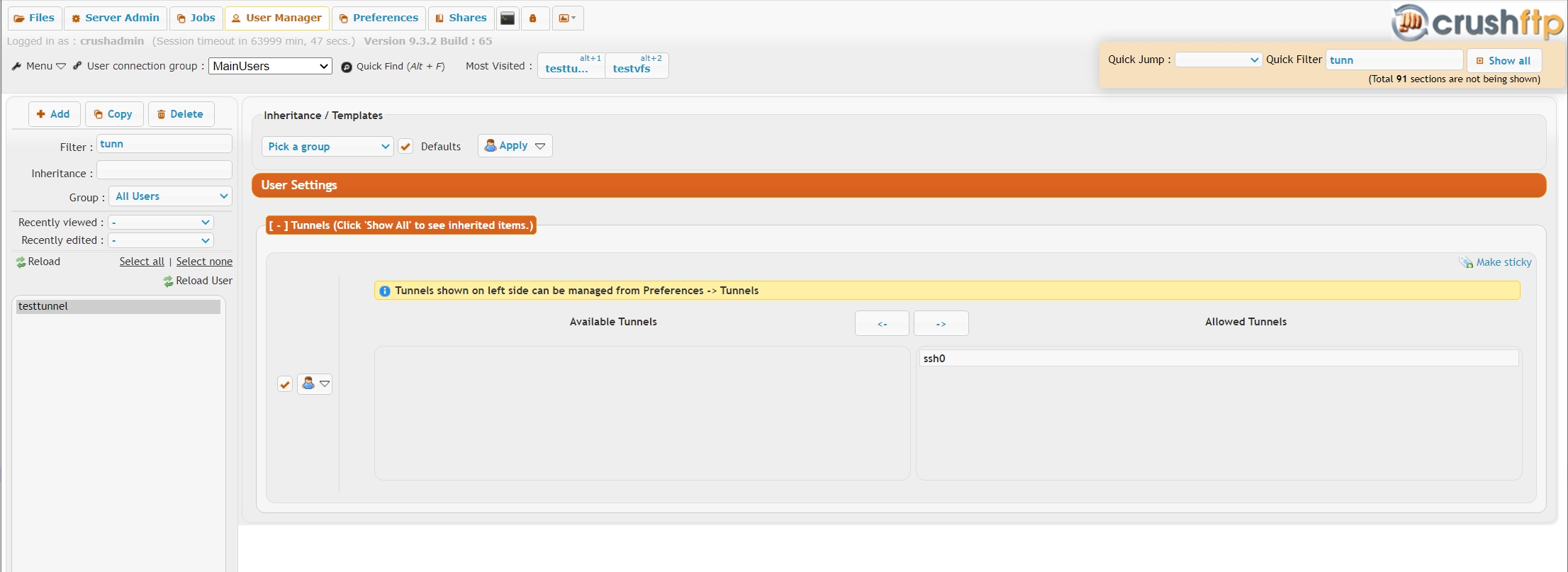
 **2.) assign that tunnel instance to a user account** in User Manager **[Tunnels](UserManagerTunnels.md)** section
 **3.) connect with openssh tunnel mode no console**
```
ssh -v -N -L 8888:localhost:8080 testtunnel@192.168.3.102 -oPort=2222
```
**where you will replace ,as per your specific settings, the IPs\hostnames and port numbers as necessary:**
**8888**\
is the local port number you will connect to with a browser like **http://127.0.0.1:8888/**
**localhost**\
is the remote forward IP or host name we tell the ssh (Crush server) to connect the tunneled port . This example is a loopback tunnel to the Crush server itself, we connect to the HTTP port 8080 listener on the same host.
**8080**\
is the remote port to tunnel to
**192.168.3.102**\
is the Crush server's publicly accessible IP
**2222**\
is the Crush server's publicly accessible SFTP port
**testtunnel**\
is the tunnel user login name.