# Jobs
The Jobs engine is an Enterprise only feature, allows running ***[CrushTask](CrushTask.md)*** plugin based automation tasks, manually, scheduled in a timely fashion or triggered by user activity, when invoked as a user ***[Event](UserManagerEvents.md)***. It's a powerful feature offering advanced local or remote file processing capabilities, custom logging or sending out email notifications and some well beyond the scope of a MFT server application, like invoking a shell script, HTTP calls or SQL operations, IF/ELSE like decision making, text processing, etc. Our video tutorial covers the basics
http://www.crushftp.com/videos/jobs_events.mp4
The Jobs panel has three major sections, a list of available and active jobs, a designer panel and the scheduler.
## Jobs list
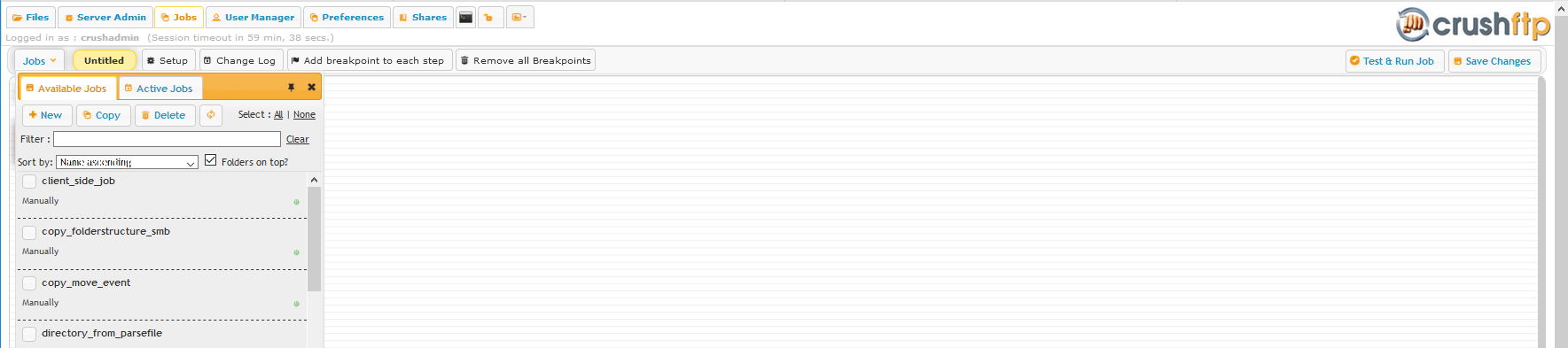
Here can create new jobs and manage existing ones.
 ### Available jobs
A list of existing jobs. In this section can create, clone or drop existing ones, using the **New**, **Copy** or **Delete** buttons. Selecting an entry in the list will open the job in the **Designer** window for editing.
### Active jobs
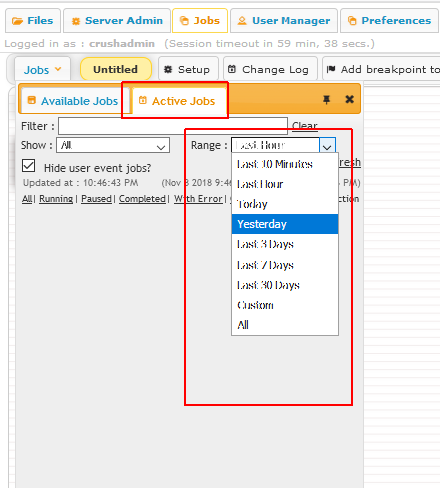
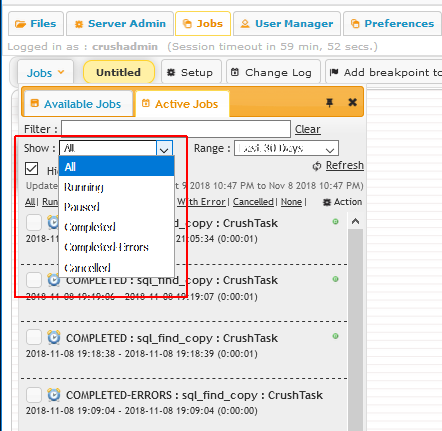
A list of execution history, can filter on name, execution time interval and state (success,error) of a job. Selecting an entry from this list will open it in the **Designer** window.
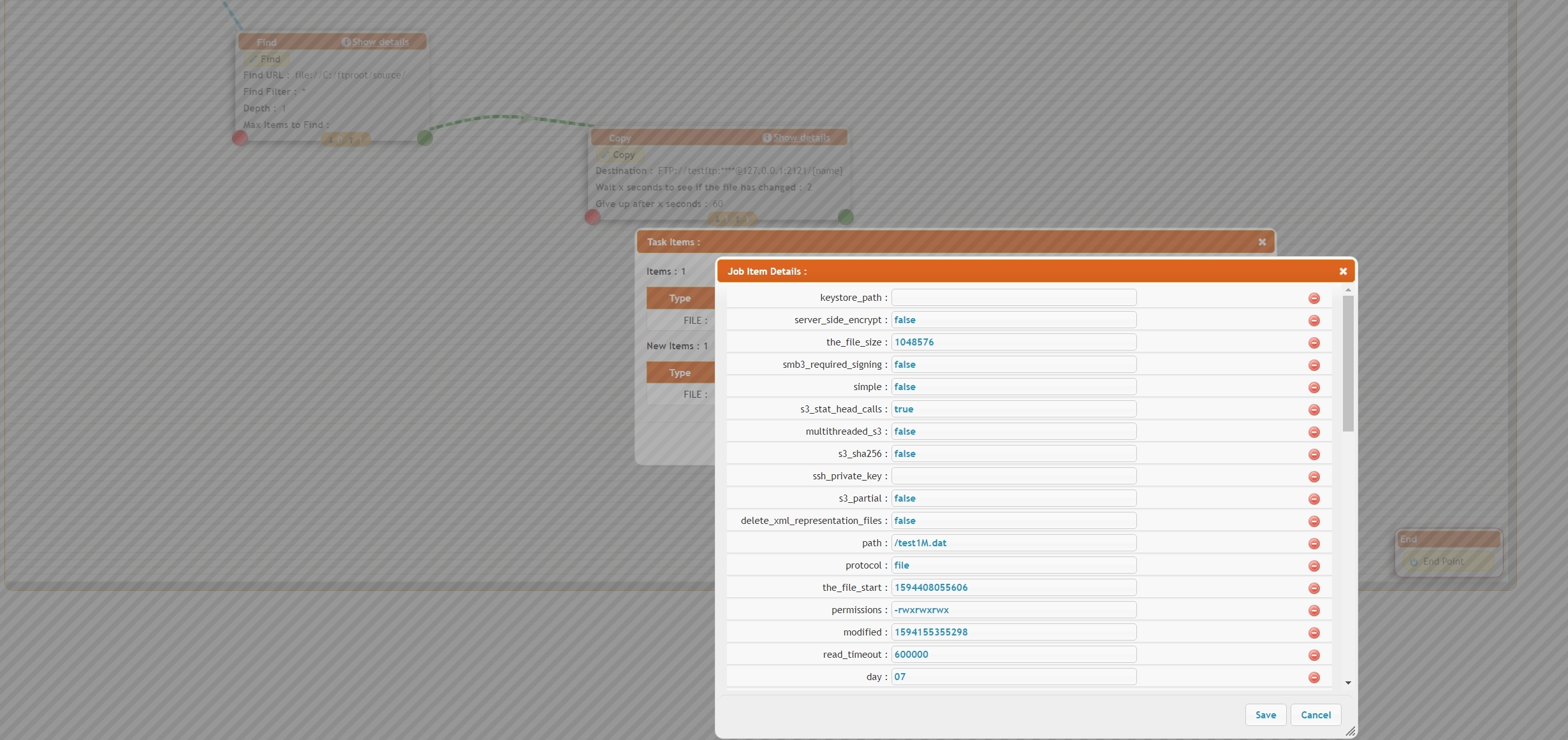
with the processed items visible. The **Log** tab allows viewing and copying the log of this execution instance.
## Designer
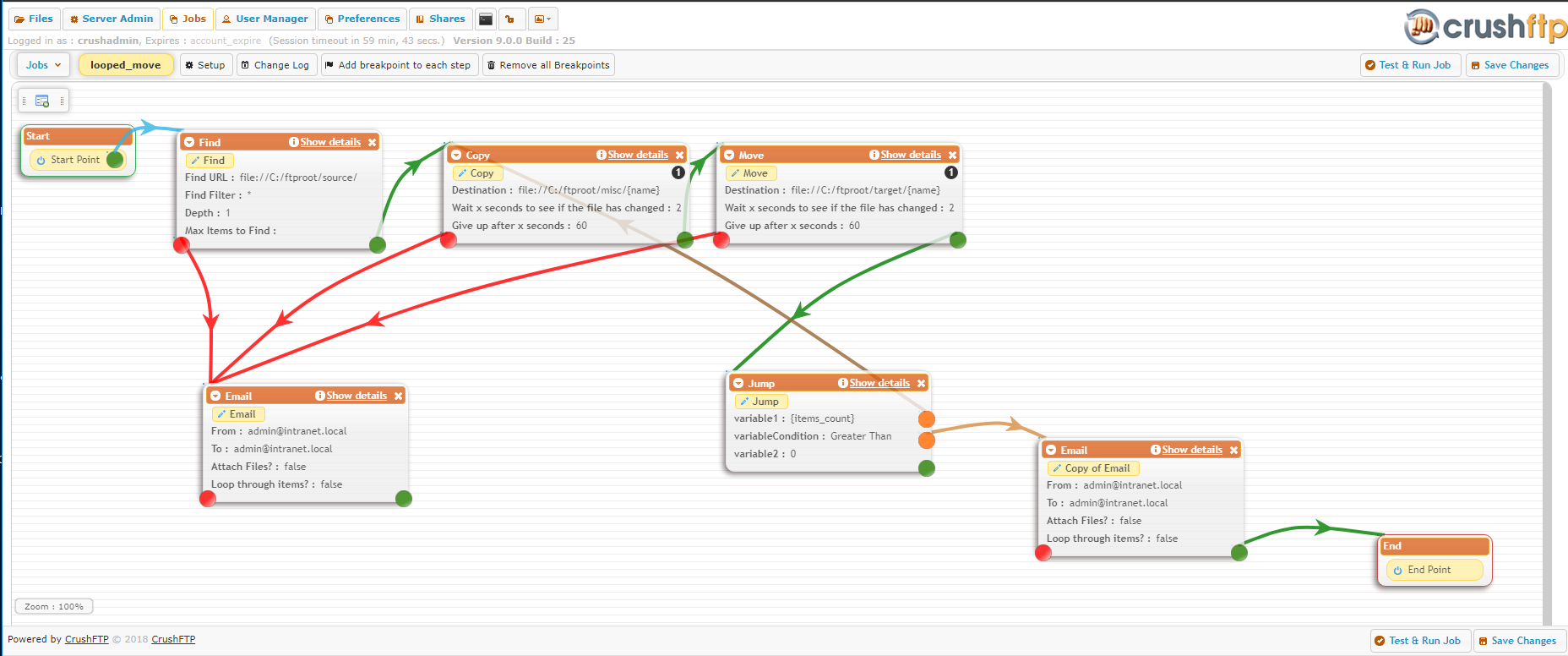
The main task flow editor window. Can add various task items by double clicking into the white space or dragging an item from the **New Task** icon. Most of the task items will have two connection nodes, a **green** and a **red** dot. Green path is taken on a successful execution of a task item. If it fails, the red dot path is followed, or if no error handling task flow connected, the job would fail with an error.
 ## Scheduler
This page allows configuring the schedule execution time table and some other, more advanced configurations.
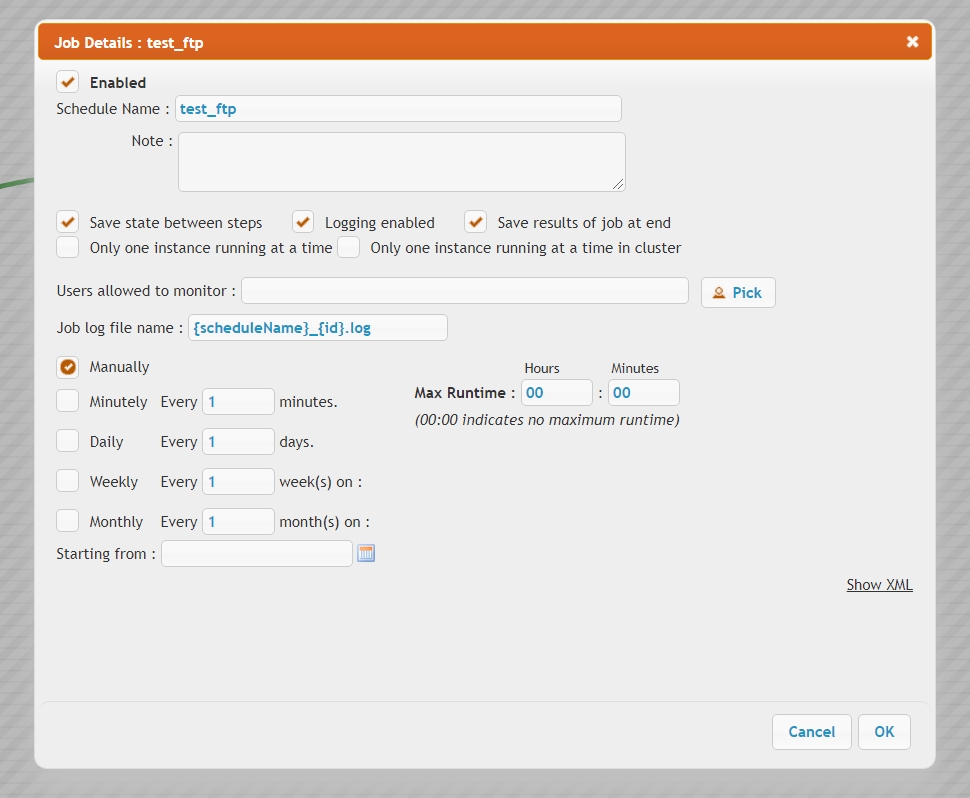 **Save state between steps**\
Needed only when debugging with breakpoints, for normal operation mode, this option needs to be off
**Logging enabled**\
toggles logging to file, on a per job basis
**Save results of job at end**\
toggles saving jobs execution history, on a per jobs basis. If this option is not set, the job history won't show up in the Active jobs list
**Only one instance running at a time**\
When toggled on, prevents overlapping schedules of the same job
**Only one instance running at a time in cluster**\
In case of a HA server cluster, toggles running on the ServerBeat master node only. Has no effect without ServerBeat enabled
**Users allowed to monitor**\
In case of a limited admin scenario, can pick a limited admin to be able to monitor this job.
## Change Log
Enable the "Audit job logs" to track job changes. Generel job settings -> Audit job logs flag.
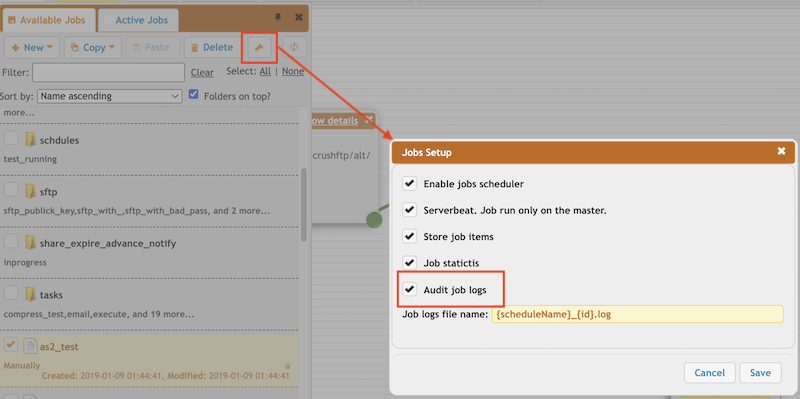
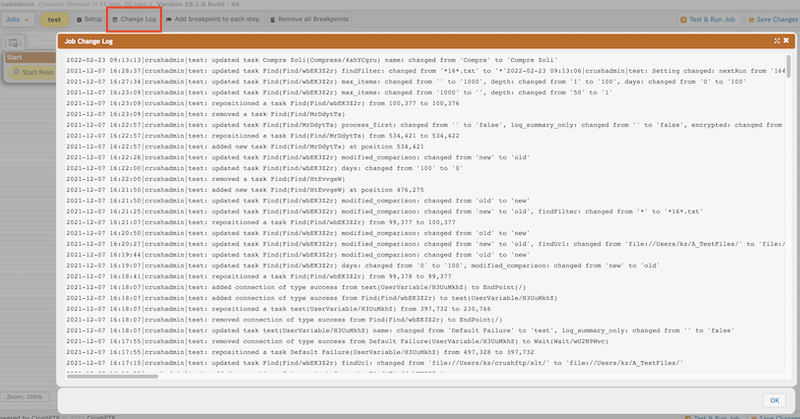
After that job changes are tracked. Select a job and click on the "Change Log" button to see the changes.
## Troubleshooting
The Active Jobs list display the execution history of all jobs, can be filtered on date/time range and state of execution (success, error)
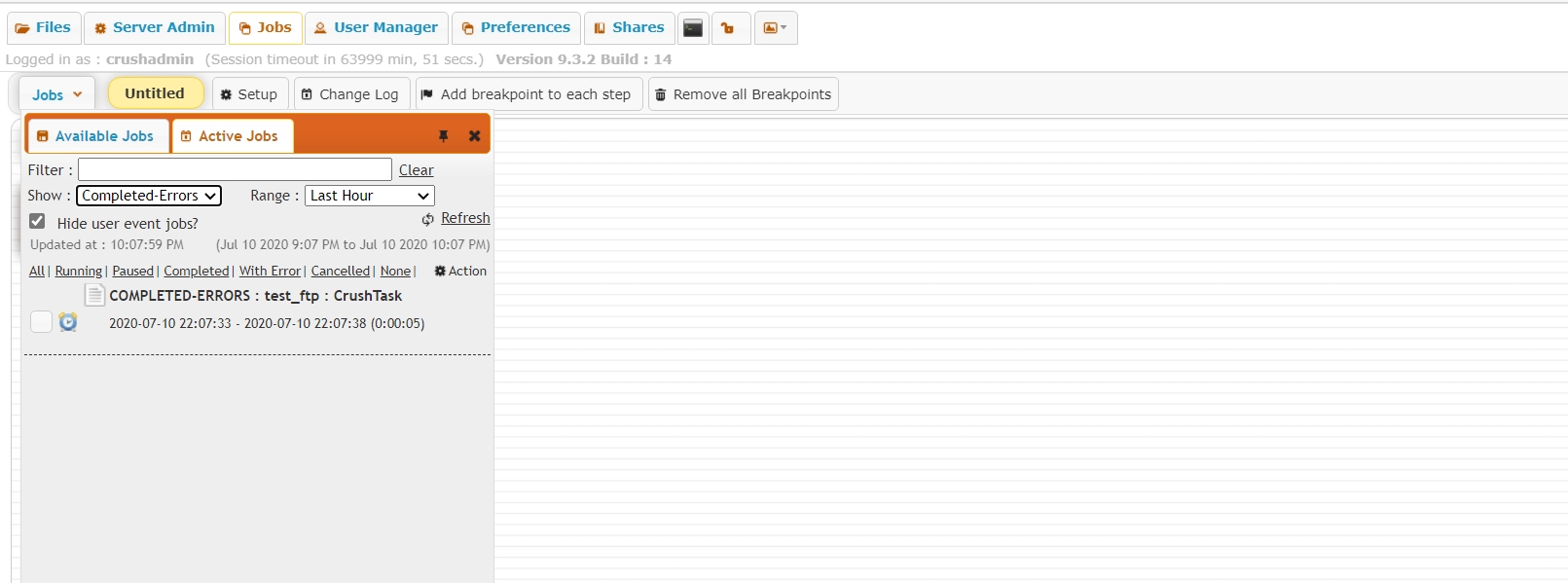 If a list item is selected, we will open the job task flow animation frozen at it's last state, in the Designer page. If the small updown-arrow icon is clicked below a task item, it will display the list of items processed
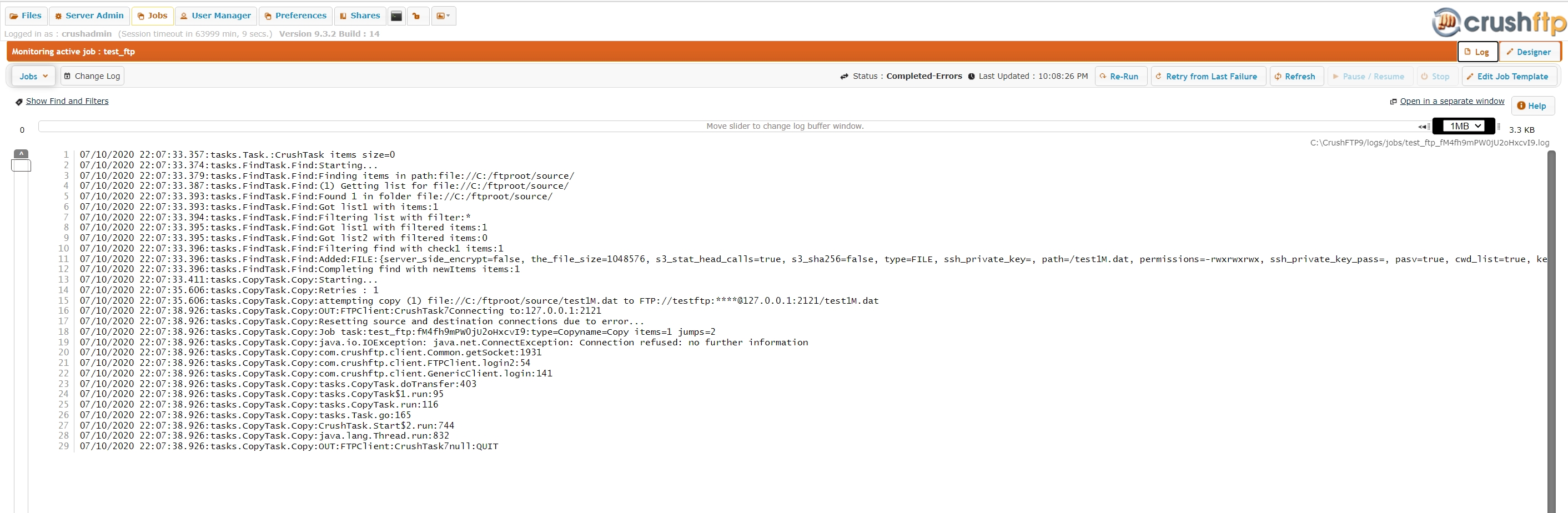
 The Log tab will show the current job log, if logging was enabled.